The studio, named by object
Schedules, a product library, a client dashboard, invoicing, order tracking, and purchasing.
On this page
01 · Schedules
Item cost, markup, and client price on one schedule
Specify products with images. Share the same document with the client. Export PDF or CSV when you need a file.
- Drop in a product page. We pull what we can. You keep what is true.
- Save it once. Put it on the next schedule without retyping the spec.
- Share the schedule. Hide what the client should not see. Stop sending another export.
Schedule
Search
Kitchen Renovation
2Pendant Lighting
Kitchen
Counter Stools
Dining
Primary Suite
2Bedside Sconces
Bedroom
Area Rug
Bedroom
Planning
2Confirm tile lead times
Tomorrow
Finalize plumbing specs
Thu
In Progress
2Request quote from vendor
Today
Send client revision set
Fri
Done
2Approve vanity selection
Completed
Attach install notes
Completed
Search products...
Tile Fabric
Linen Weave Upholstery
Loom Studio
Fabric
$89 Trade

Handmade Zellige Tile
Atlas Clay
Tile
$24 / sq ft
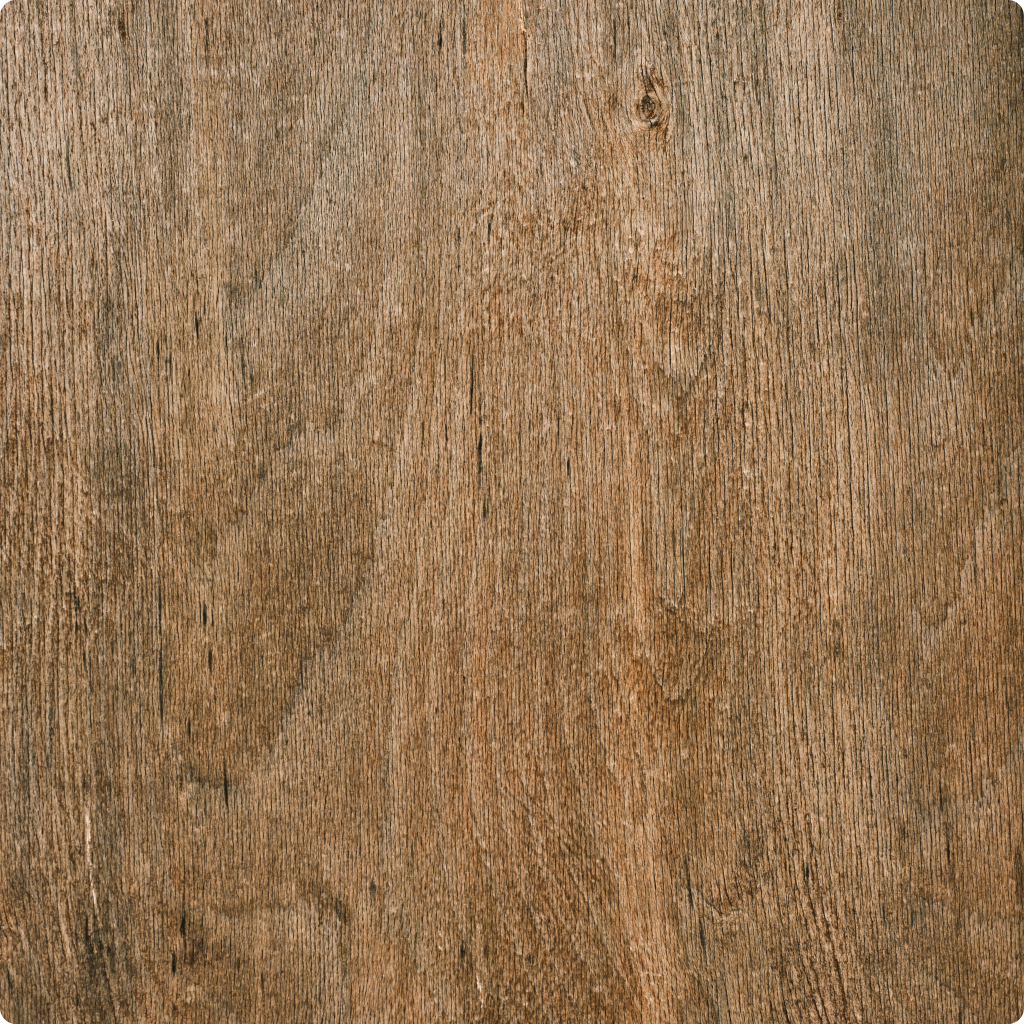
White Oak Plank
North Grain
Wood
$14 / sq ft
02 · Web Clipper
Save the product from the page.
Photos, details, spec sheets — off the vendor site and into your library.
- Install it. Open a vendor page. Save the product.
- Already in Object & Order? Paste the link. We parse what we can.
- The studio can find it. You can add it to a schedule.
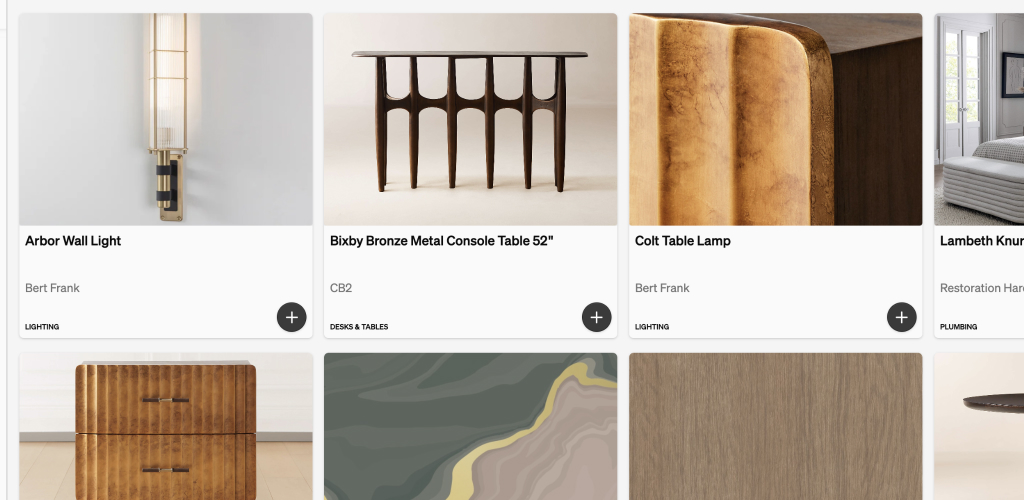
03 · Product Library
Save it once. Specify it again.
Your studio’s products — specs, images, vendors, prices — ready for the next schedule.
- Search by name, vendor, SKU, or tag.
- Clip from the page or paste a URL. It is in the library before you close the tab.
- The schedule can diverge. The library stays the source you trust.
04 · Client Dashboard
Clients sign in to see the published schedule
Comments and approvals sit on the item. Invoices can be paid in the same place. They sign in with a link, email, or Google.
- You publish. They see it. You unpublish when it is not ready.
- The conversation stays on the product — not in a forwarded thread.
- Invoices live next to the work. The client pays from the dashboard.
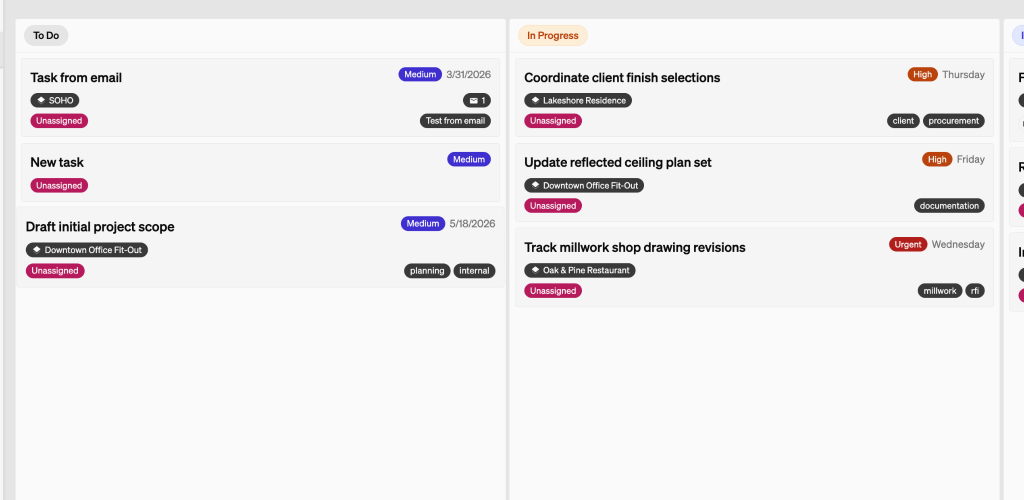
05 · Tasks
The next step has an owner.
A board when you want flow. A list when you want to scan. Time on the task when you bill it.
- To do, in progress, in review, done. Drag the card.
- The same tasks, when you need to scan.
- Log hours where the work happened. Bill them later.
06 · Time
Every hour logged. Every hour billed.
Start the timer on the project. Add the hours you forgot. Put them on the invoice.
- Start. Stop. Optional task. One running timer.
- Hours, date, a note. Billable when it should be.
- Import unbilled time. Do not retype the week.
07 · Invoicing
Build invoices from the schedule and from time
Pull purchase-order lines, import unbilled hours, or add a free-form line. The client pays from the dashboard.
- Pull purchase-order lines with the prices you already set.
- Import unbilled hours. Group them how you bill.
- Design fees, retainers, custom charges — not only goods.
Note: Small fee applied only to placed orders.
08 · Order Tracking
The purchase order knows where it is.
Quote, order, ship, deliver — on the record. Connect Gmail or Outlook. Carrier updates land here.
- Gmail or Outlook. Vendor mail sits next to the work.
- Requested, quoted, ordered, shipped, delivered.
- Shipment progress on the purchase order — not in a side spreadsheet.
09 · Purchasing
Order through us. Or track it yourself.
O&O-sourced goods: we place the order after the required amount is collected. Self-sourced: you order; we still track.
- We request the quote, collect from the client, and place the order. Platform fee on item cost only. Shipping is never fee’d.
- You order from the vendor. No platform fee. The purchase order still tracks.
- O&O-sourced orders wait until the required amount is collected. Self-sourced never waits on that gate.