01
Always the current schedule
You publish. They see it. You unpublish when it is not ready.
Client Dashboard
Comments and approvals sit on the item. Invoices can be paid in the same place. They sign in with a link, email, or Google.
Attachments go stale. Email threads scatter. Give them a dashboard that stays current with what you publish.
01
You publish. They see it. You unpublish when it is not ready.
02
The conversation stays on the product — not in a forwarded thread.
03
Invoices live next to the work. The client pays from the dashboard.
Firm identity on the portal. The client signs in with a link, email, or Google — you are not managing their passwords.
They review the published schedule and approve on the item. You see it in the same document your team is using.
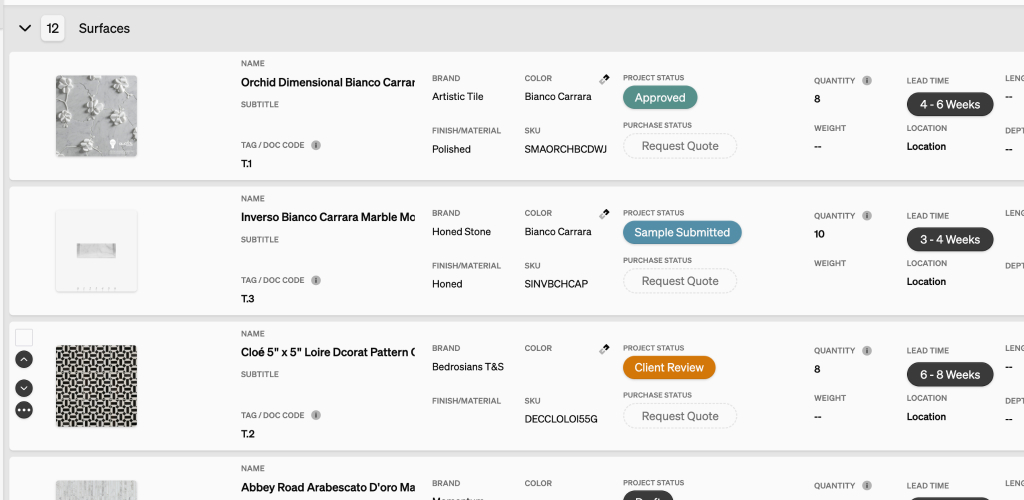
Specify products with images. Item cost, markup, shipping, and client price on the line. Export PDF or CSV.
Pull purchase-order lines, import time, or add a free-form line. Stripe is included. The client pays from the dashboard.
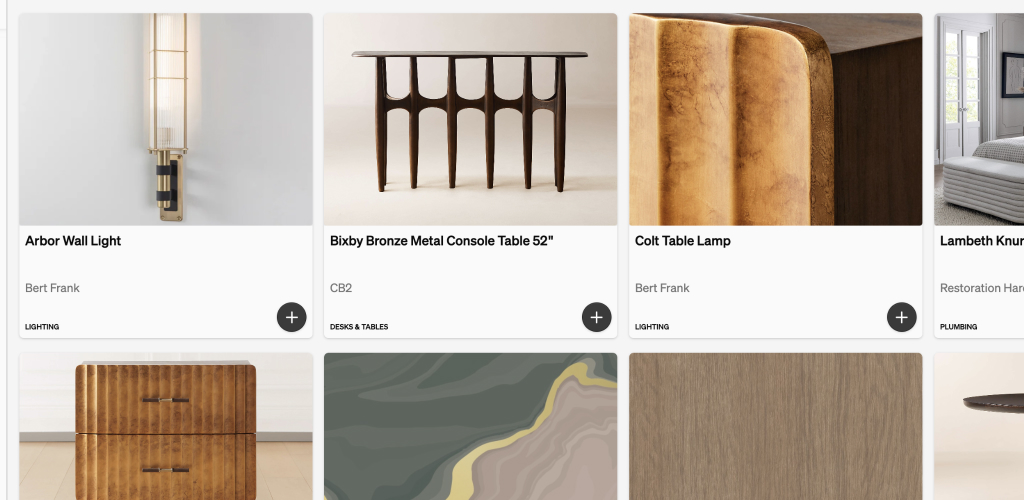
Search by name, vendor, or SKU. Add a saved product to the next schedule without retyping the spec.