01
Paste a URL
Drop in a product page. We pull what we can. You keep what is true.
Schedules
Specify products with images. Share the same document with the client. Export PDF or CSV when you need a file.
Schedule
Search
Kitchen Renovation
2Pendant Lighting
Kitchen
Counter Stools
Dining
Primary Suite
2Bedside Sconces
Bedroom
Area Rug
Bedroom
Planning
2Confirm tile lead times
Tomorrow
Finalize plumbing specs
Thu
In Progress
2Request quote from vendor
Today
Send client revision set
Fri
Done
2Approve vanity selection
Completed
Attach install notes
Completed
Search products...
Tile Fabric
Linen Weave Upholstery
Loom Studio
Fabric
$89 Trade

Handmade Zellige Tile
Atlas Clay
Tile
$24 / sq ft
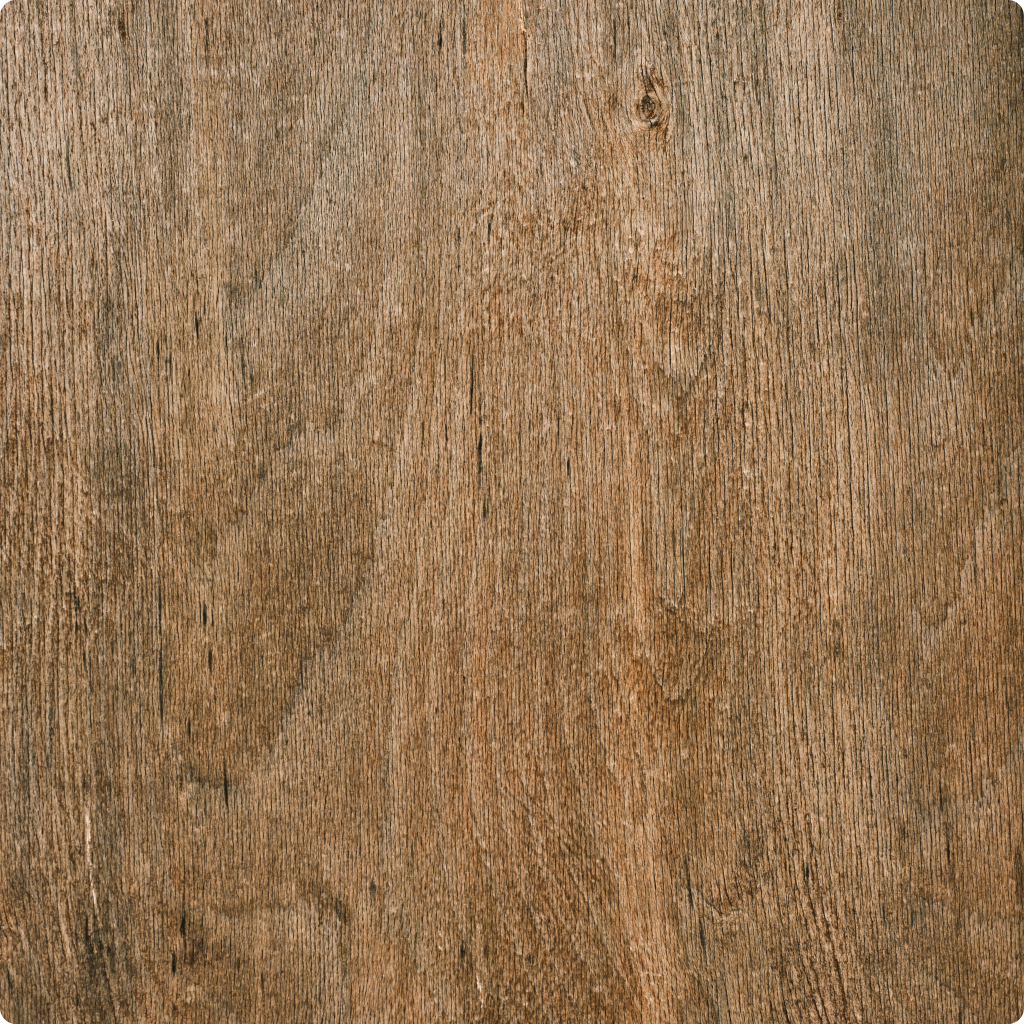
White Oak Plank
North Grain
Wood
$14 / sq ft
They hired you to design. The specification should live in one place — then feed the invoice, the purchase order, and the client dashboard.
01
Drop in a product page. We pull what we can. You keep what is true.
02
Save it once. Put it on the next schedule without retyping the spec.
03
Share the schedule. Hide what the client should not see. Stop sending another export.
Sections, line items, images, item cost, markup, client price, and where the order stands — in one view.
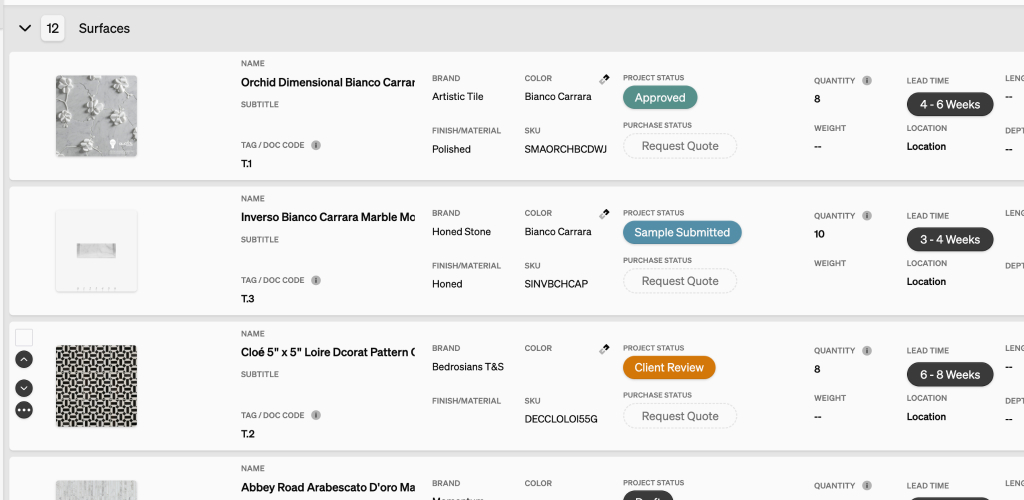
You do not rebuild the job to invoice it, share it, or order it.
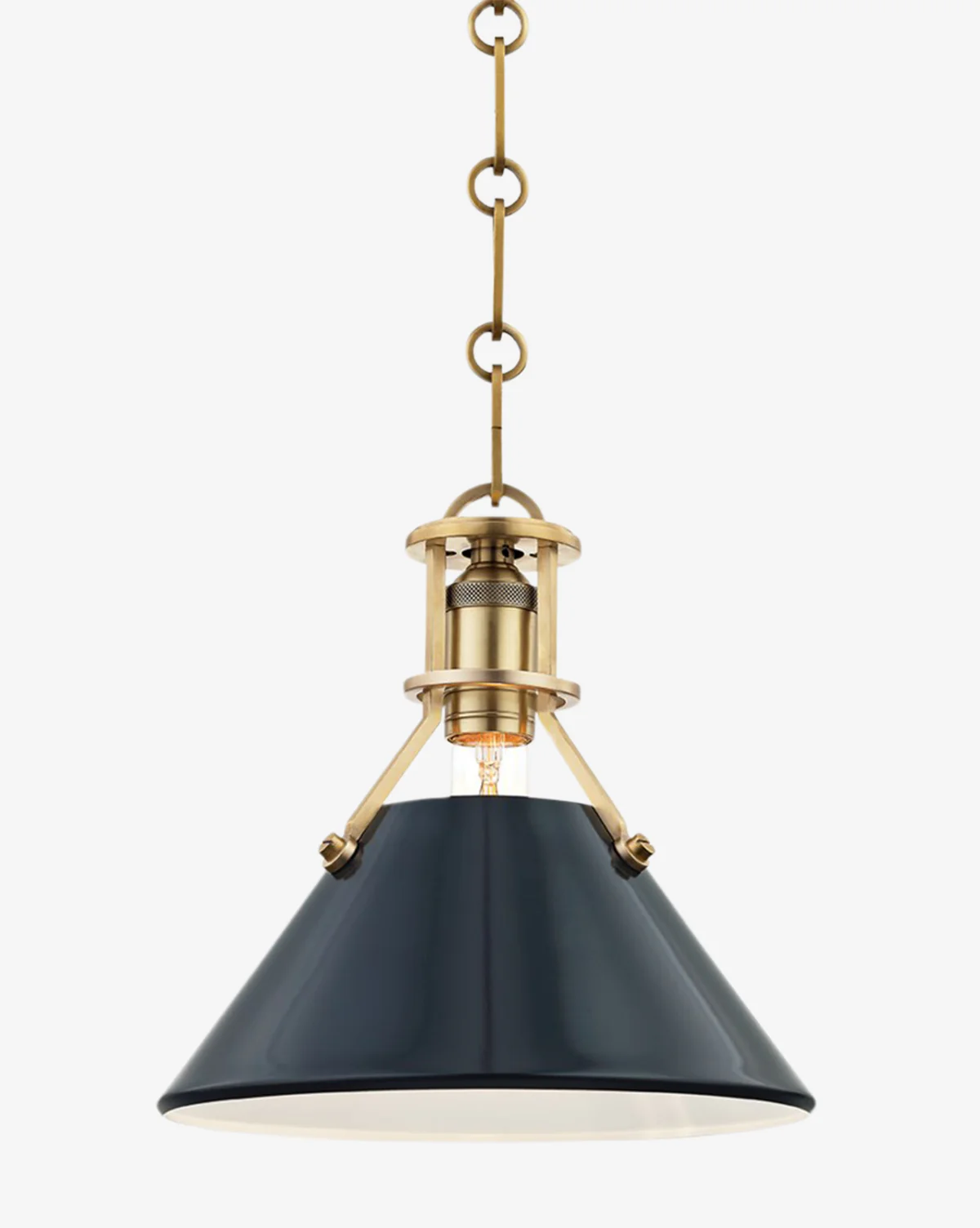
Chrome clipper, or paste a URL. Photos, details, and spec sheets land in the library.
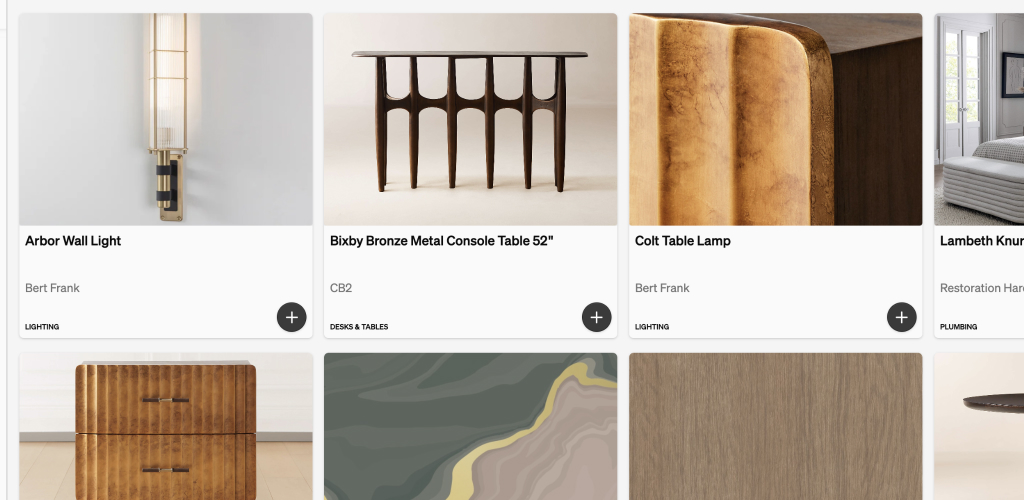
Search by name, vendor, or SKU. Add a saved product to the next schedule without retyping the spec.
Clients sign in with a link, email, or Google. They see the published schedule, comment on the item, and pay invoices.
Pull purchase-order lines, import time, or add a free-form line. Stripe is included. The client pays from the dashboard.
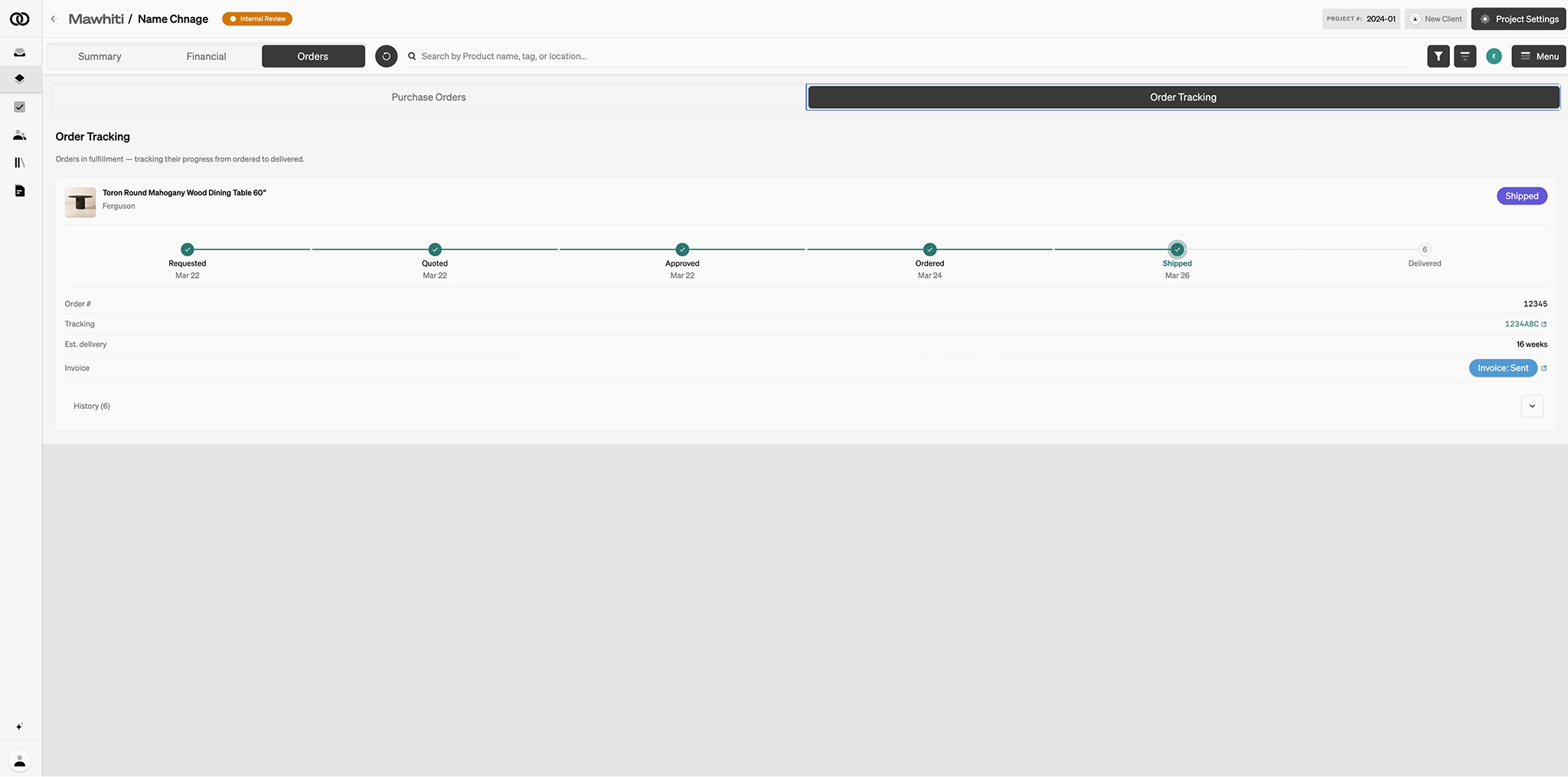
Connect Gmail or Outlook. Status lives on the purchase order — requested, quoted, ordered, shipped, delivered.