01
Find it
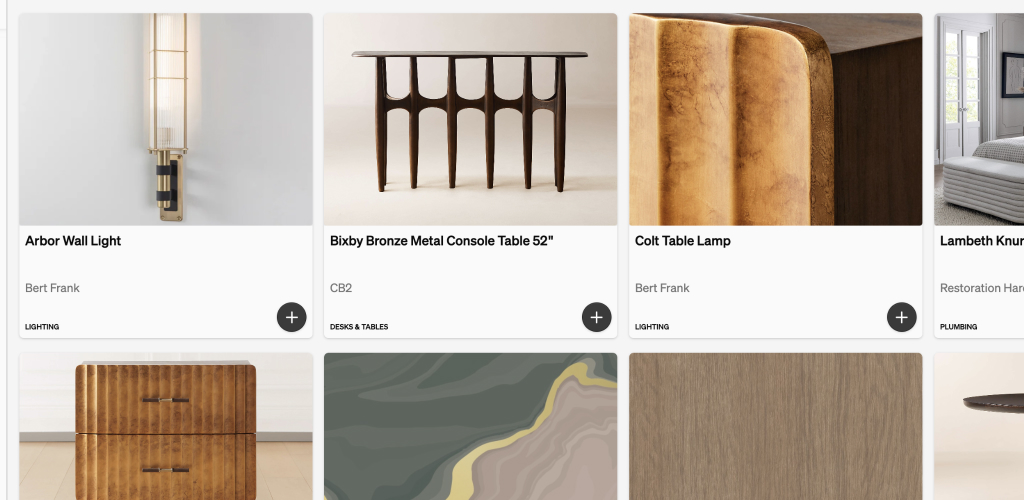
Search by name, vendor, SKU, or tag.
Product Library
Your studio’s products — specs, images, vendors, prices — ready for the next schedule.
Schedule
Search
Kitchen Renovation
2Pendant Lighting
Kitchen
Counter Stools
Dining
Primary Suite
2Bedside Sconces
Bedroom
Area Rug
Bedroom
Planning
2Confirm tile lead times
Tomorrow
Finalize plumbing specs
Thu
In Progress
2Request quote from vendor
Today
Send client revision set
Fri
Done
2Approve vanity selection
Completed
Attach install notes
Completed
Search products...
Tile Fabric
Linen Weave Upholstery
Loom Studio
Fabric
$89 Trade

Handmade Zellige Tile
Atlas Clay
Tile
$24 / sq ft
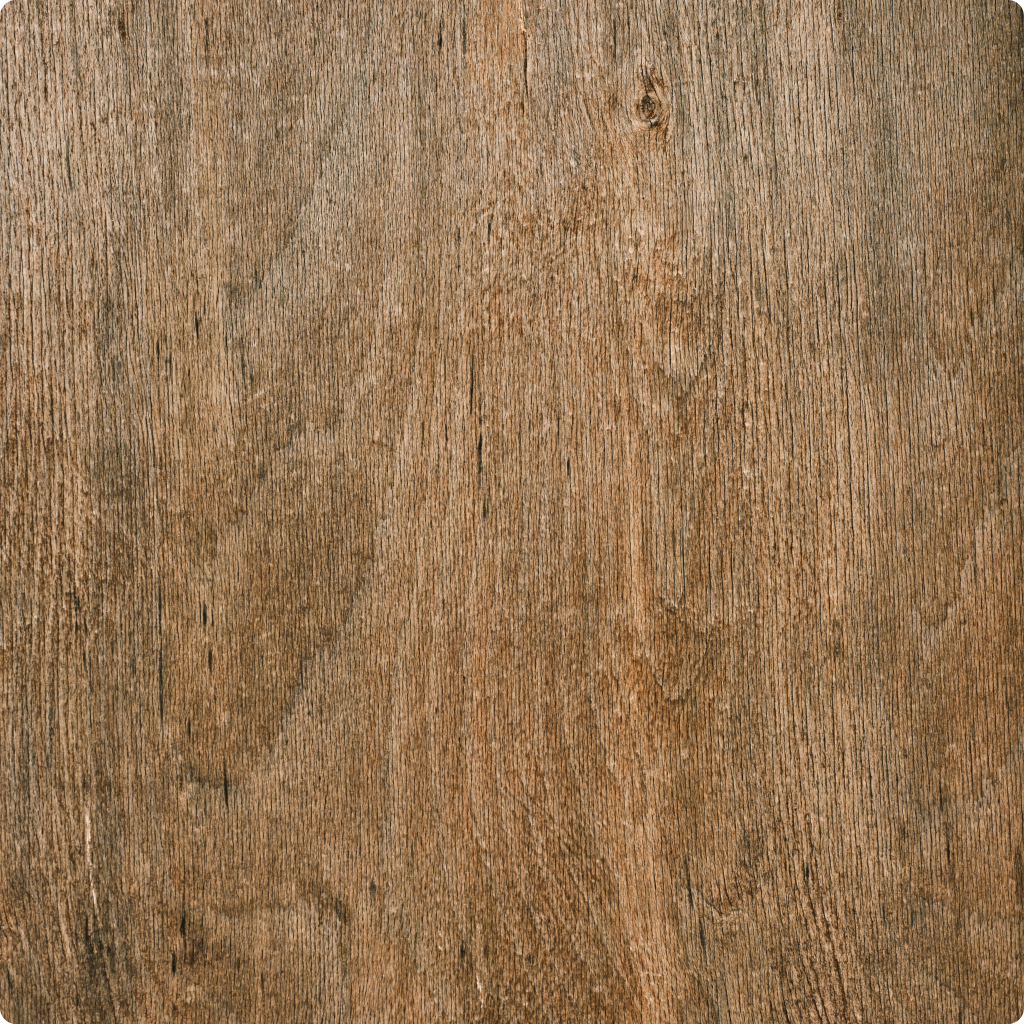
White Oak Plank
North Grain
Wood
$14 / sq ft
Bookmarks expire. Screenshots get buried. The library is the record you actually reuse.
01
Search by name, vendor, SKU, or tag.
02
Clip from the page or paste a URL. It is in the library before you close the tab.
03
The schedule can diverge. The library stays the source you trust.
Store the spec, the images, the vendor, and the price you actually buy at. Spec sheets and files live on the product.